
Wrap an image around a 3D globe
Turn a 2:1 world map, texture, artwork or panorama into a shaded globe you can rotate and export as a transparent PNG for slides, thumbnails and product pages.
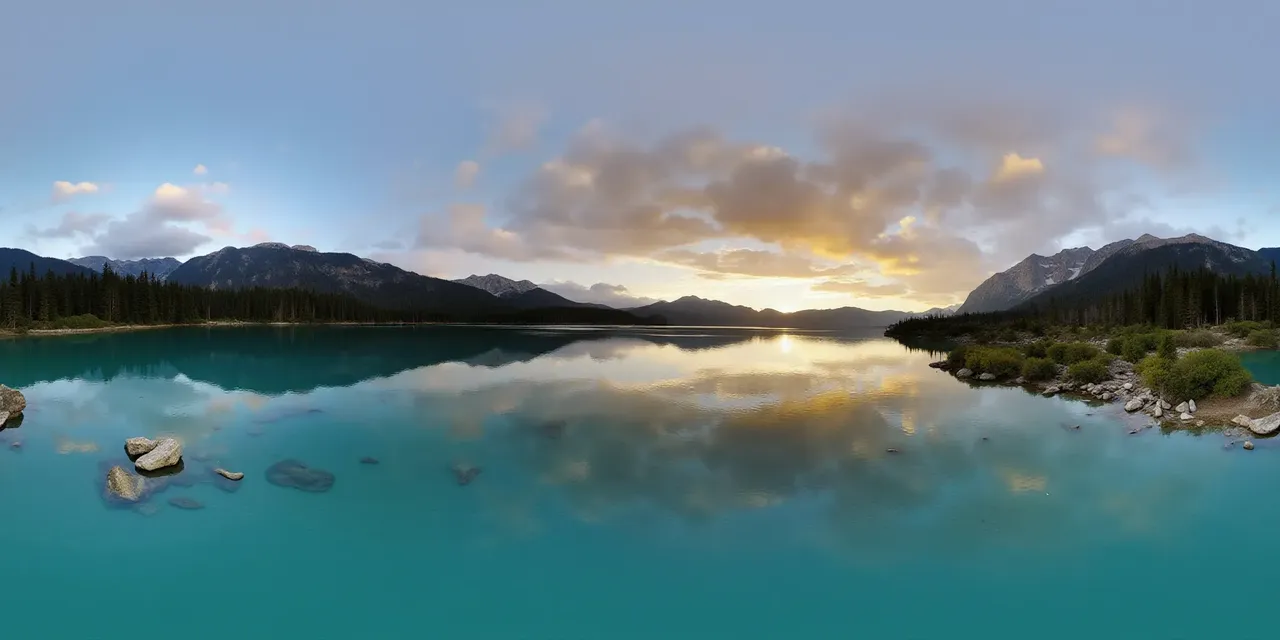 2:1 image
map · texture · pano
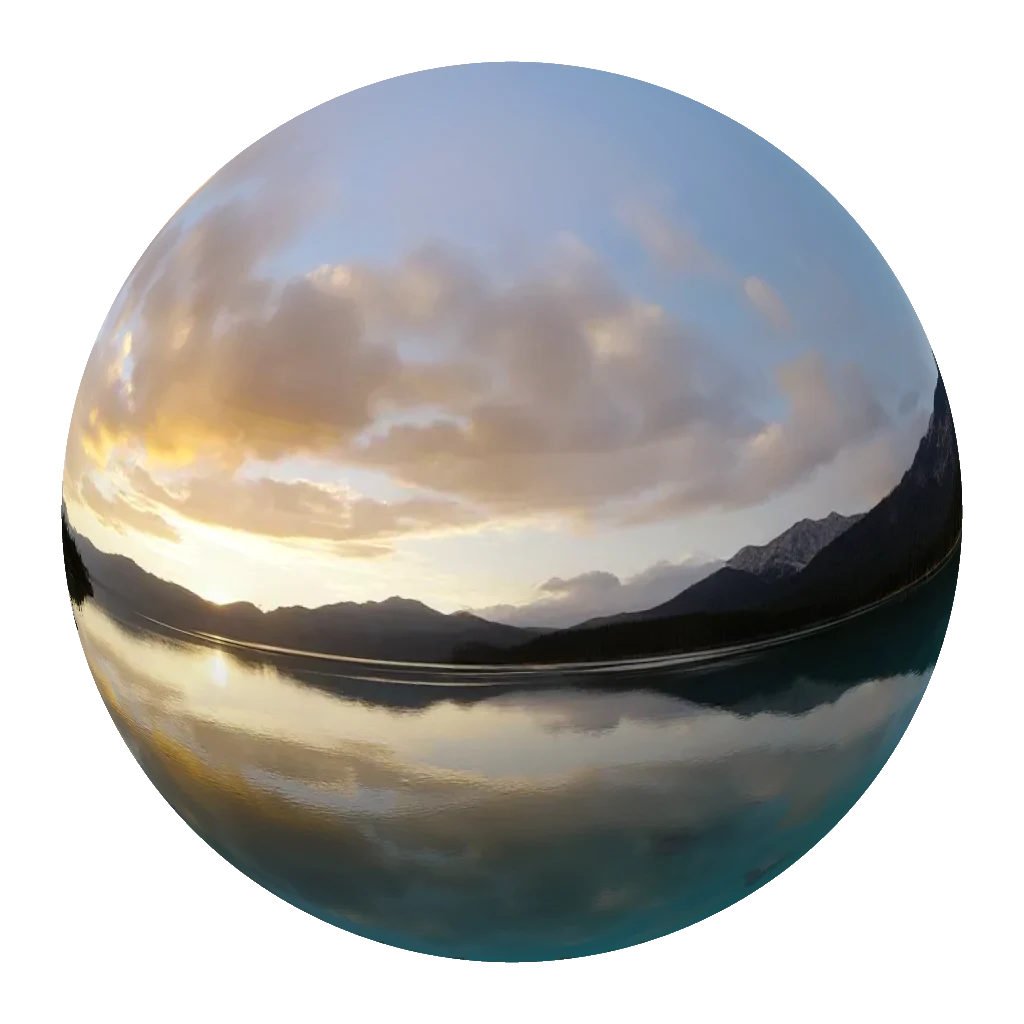 PNGtransparent
drag to rotate
Make a globe
JPG, PNG or WebP · up to 40.0 MB · rendered in this tab
Drop a 2:1 image
A world map, a texture or a panorama — the whole image is wrapped once around the sphere. Equirectangular maps and panoramas line up best.
Rotate the globe
Drag to bring the region you need to the front. Shading comes from a fixed studio light, so the form stays readable while you turn it.
Export a PNG
Choose 1024 or 2048 px and a transparent or deep-space background. The silhouette is anti-aliased, so it sits cleanly on any page.
Specifications
- Input
- Any image, 2:1 recommended, up to 40 MB
- Projection
- Orthographic sphere, equirectangular mapping
- Output
- PNG, 1024 × 1024 or 2048 × 2048
- Background
- Transparent or deep space with stars
- Shading
- Fixed key light + ambient, no baked specular
- Controls
- Drag to rotate, double-click to reset
What people use it for
Presentation and thumbnails
A transparent globe drops onto slides, lower-thirds or a dark hero without a rectangular image edge.
Map storytelling
Rotate a world map so the region in the story faces the camera, then export exactly that framing.
Panorama previews
Show a 360° environment as a small planet instead of a flat strip — useful when the image has to read at a glance.
Merch and print
Export a high-resolution globe for posters, stickers or mockups. It is a rendered sphere, not a photo of a physical globe.
How this tool works
- Longitude wraps at the image's left and right edges; latitude maps to the top and bottom.
- The export is rasterized at the chosen size, so pick 2048 px before placing it in print.
- The light follows the camera, so rotating the globe rotates the texture rather than moving the highlight.
Questions, answered plainly
If something here does not match what you see in your engine, the technical notes above are the exact behaviour of this tool.
What kind of image works best?
A 2:1 equirectangular world map or panorama. Other aspect ratios are stretched across the sphere's longitude and latitude grid, so faces and continents may distort.
Is this a real 3D model?
No. It is an orthographic projection of a textured sphere rendered into a canvas. The PNG is a flat image with shading; there is no GLB or mesh export.
Can I export with a transparent background?
Yes, transparency is the default. Edge pixels are anti-aliased so the globe sits cleanly on any background.
Why can I only see half the globe?
An orthographic view shows one hemisphere. Rotate the globe until the region you need faces the camera, then export.
Does it upload my image?
No. The texture is sampled in a canvas and the PNG is encoded in the tab.
Can I animate the globe?
Not in this tool. Use the 360 Video Maker for motion, or export several rotations as frames for a stop-motion sequence.
Related tools
All tools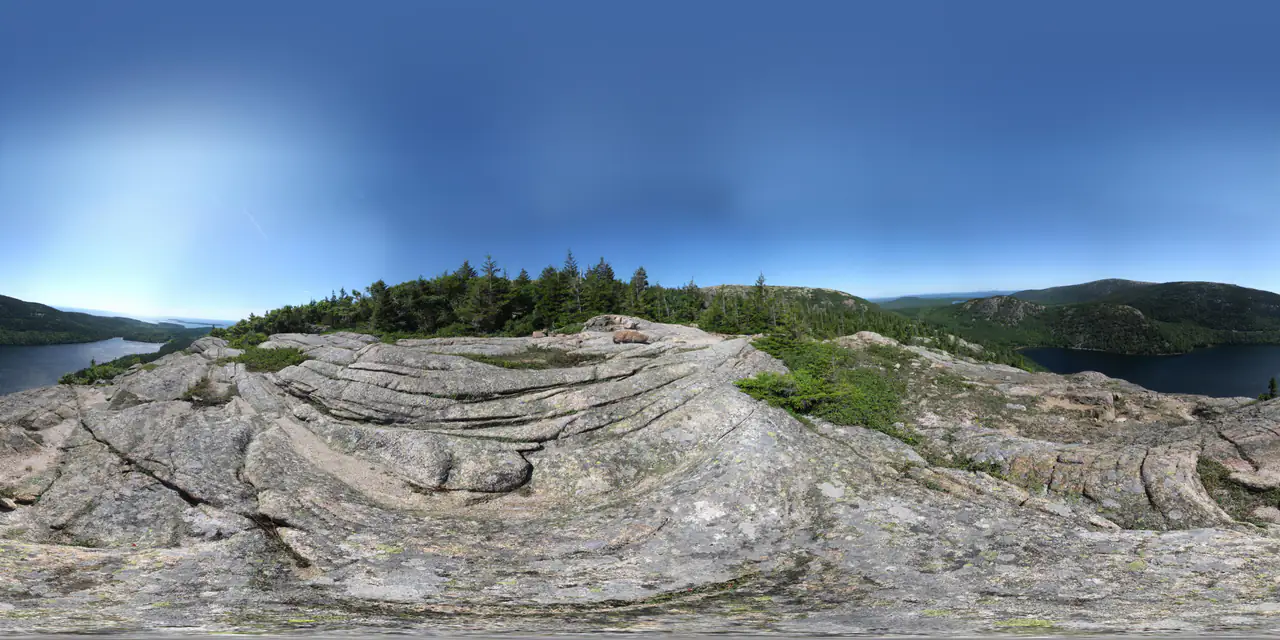
360 Panorama Viewer
Open a 2:1 image as an interactive sphere — local, no upload.
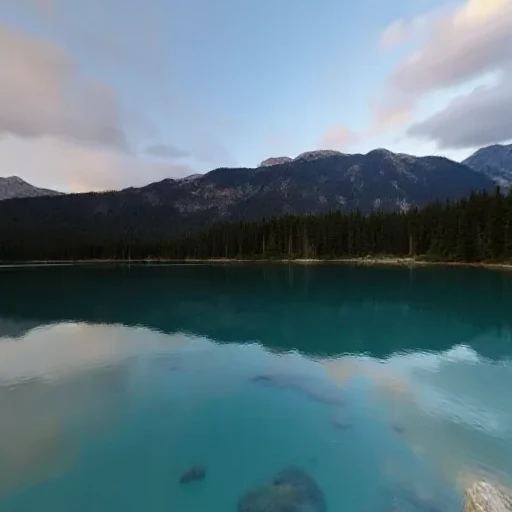
2:1 · equirectone panorama
 px
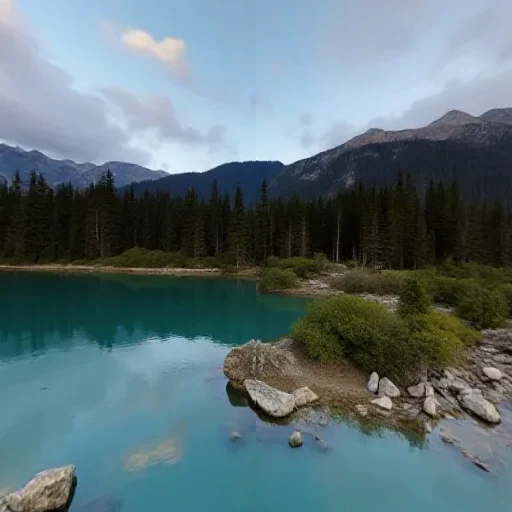 nx
 py
 ny
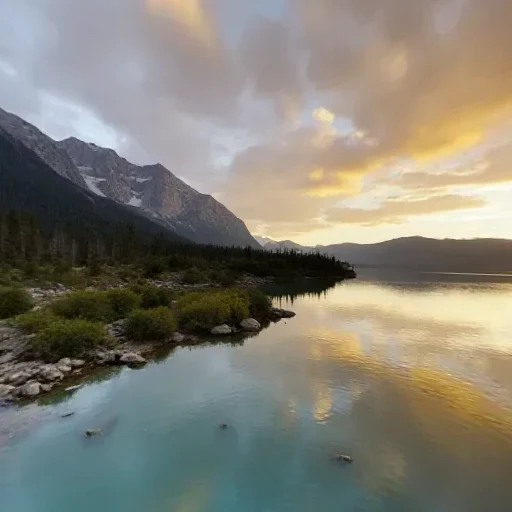 pz
 nz
six square faces · px nx py ny pz nz
Panorama to Cubemap
Split a 2:1 360° image into six square skybox faces.
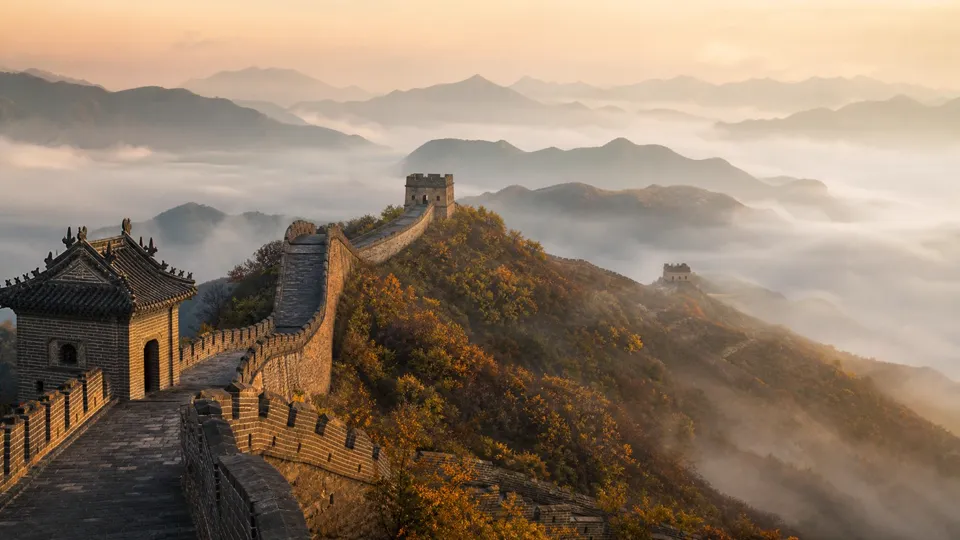
one photo
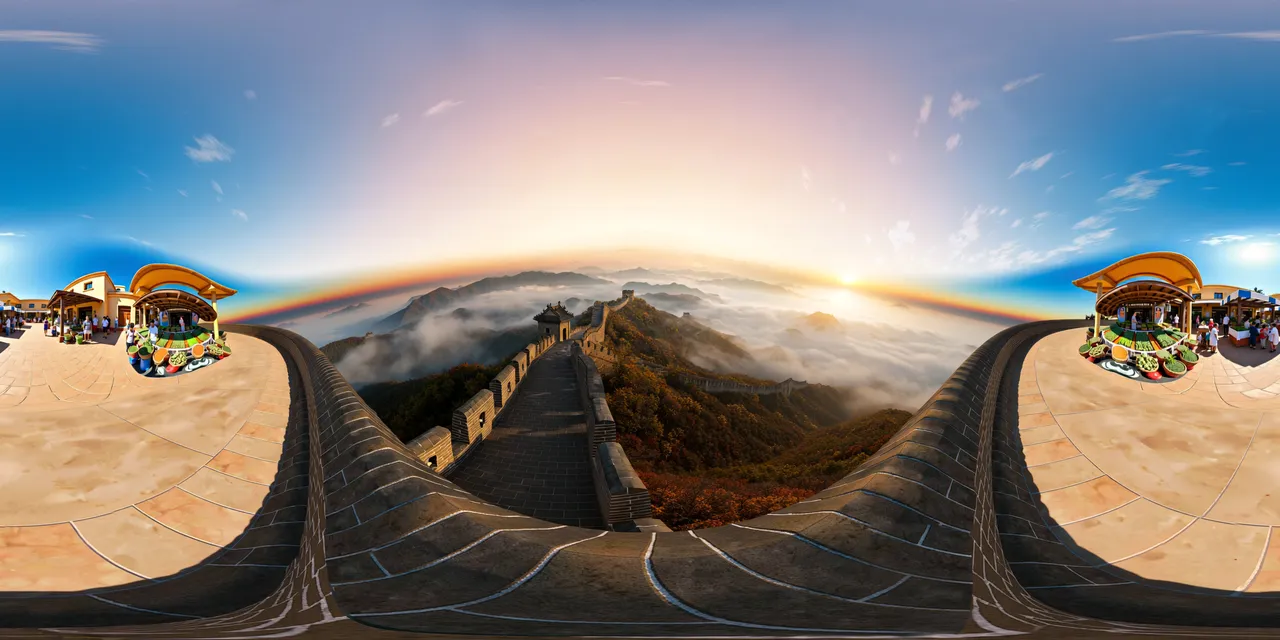 360° environment
Image to HDRI
Encode a 360° image as a Radiance .hdr with adjustable exposure.
Further reading
All guidesWhat can you do with a 360° panorama?
A 360° panorama can be a game skybox, a virtual tour, an HDRI light source or an immersive preview. Six real uses, and the format each one needs.
Read the guideThree.js 360° panorama viewer: equirectangular vs cubemap
Build a Three.js 360° viewer with an equirectangular texture or six cube-map faces. Code for both, color-space settings and mobile performance.
Read the guideEquirectangular to HDRI: a practical Blender and Three.js workflow
Encode a 2:1 panorama as a Radiance .hdr for Blender, Three.js, Unity or Unreal. What RGBE changes, what it cannot recover, and how to set exposure.
Read the guideGenerate a 2:1 panorama, then bring it back here.
PanoCraft turns a prompt or a photo into a 360° panorama. This tool takes it the last mile into your engine, viewer or lighting setup.
Files are decoded and processed in your browser memory. Nothing is uploaded, logged or stored on a server. Refreshing the page discards every file and result.