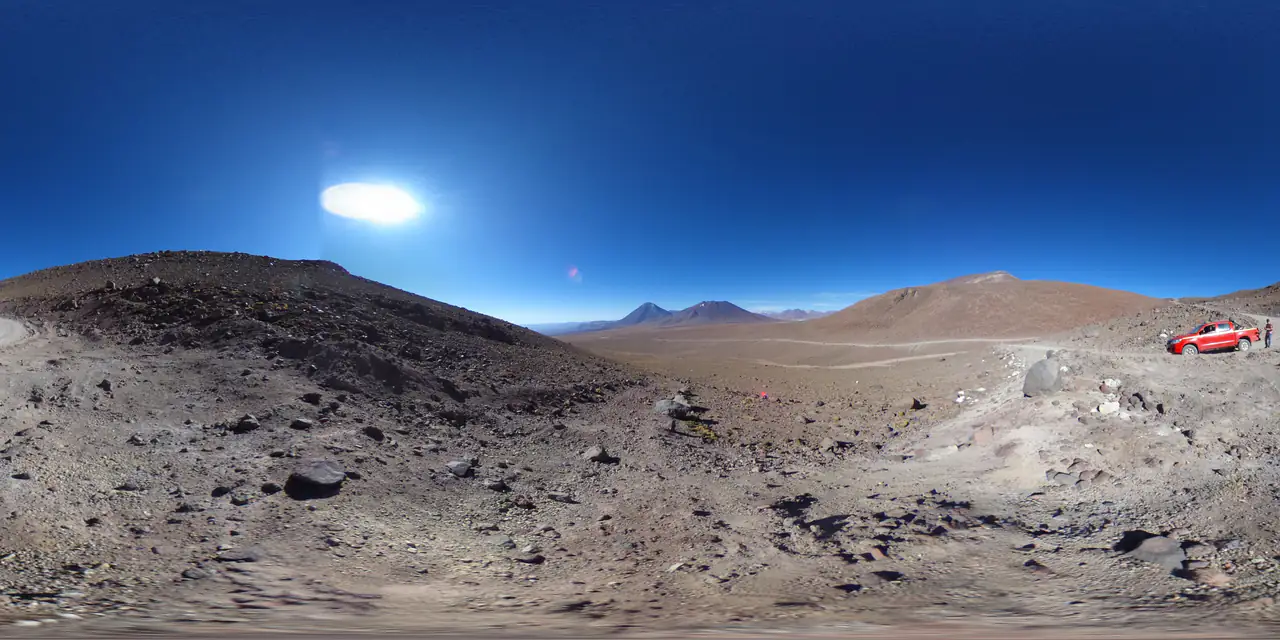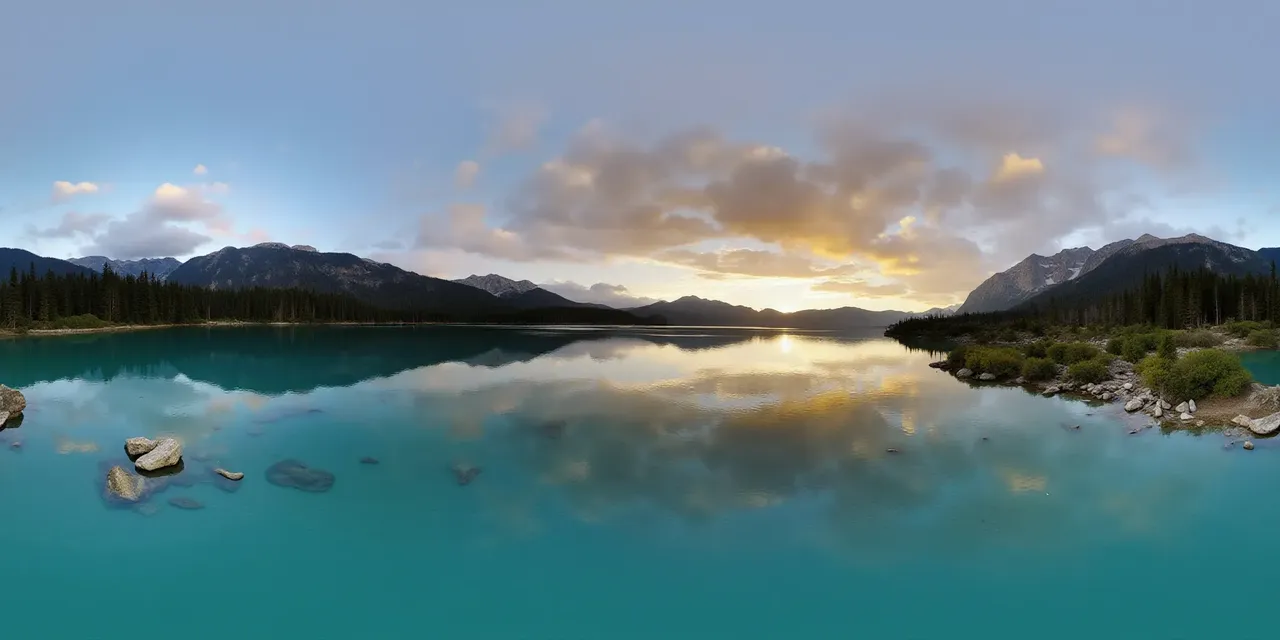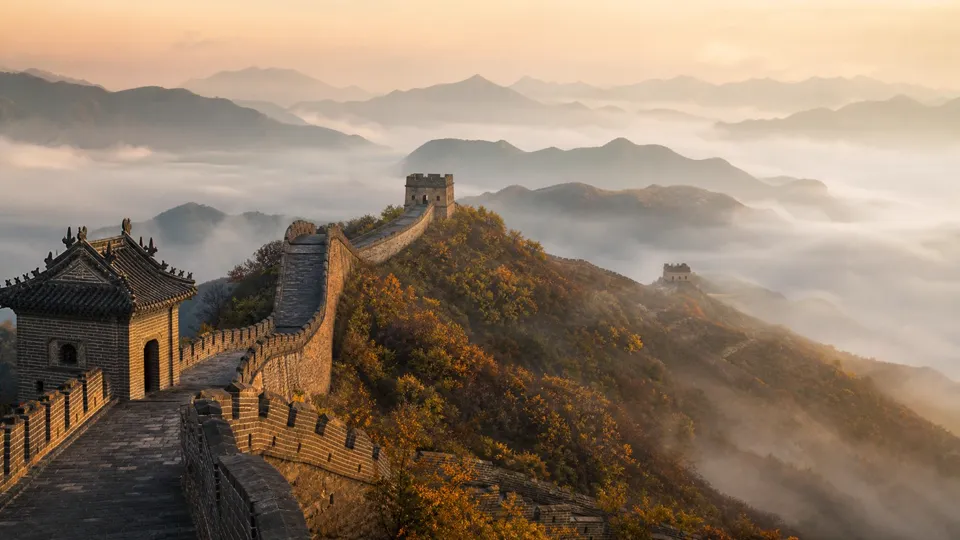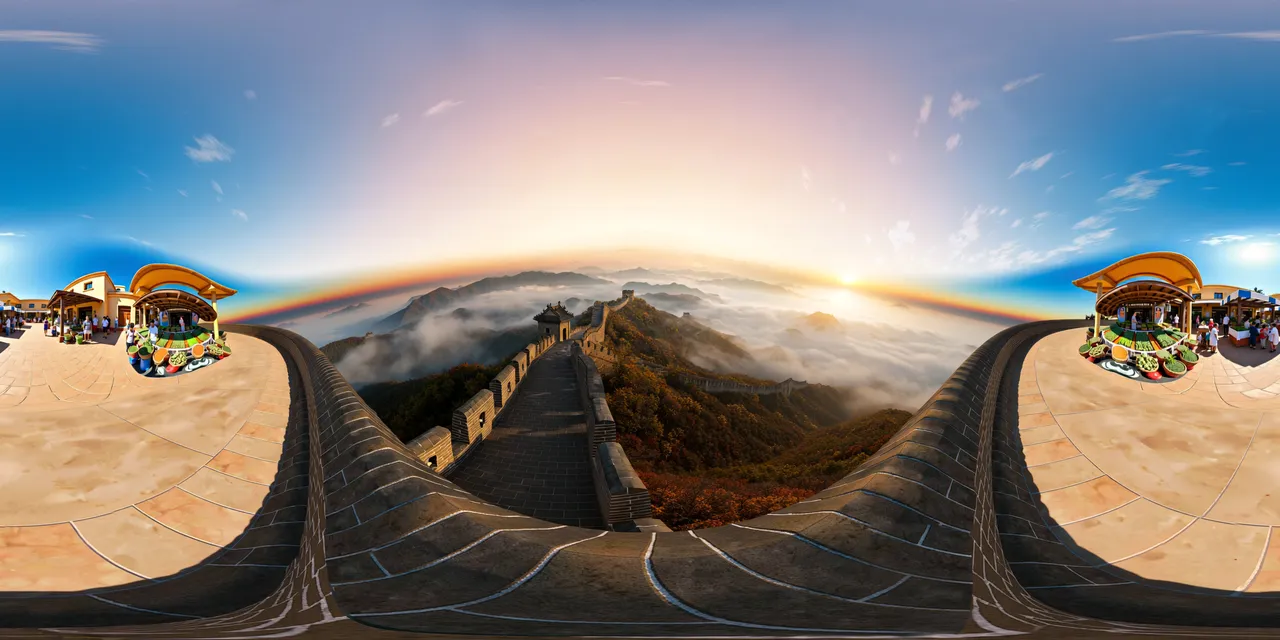
- A valid equirectangular panorama is 2:1 within a small tolerance. Anything else is not a full sphere.
- The seam is the first and last pixel column; they become adjacent on the sphere.
- Below 2K is usable for previews, not for a full-screen VR view. Clipping cannot be recovered by conversion.
Why check before converting
A panorama looks fine in a flat preview because the preview hides the two places where it fails on a sphere: the wrap seam and the poles. Conversion to a cube map or an HDRI preserves those failures. Checking first is cheaper than debugging a skybox later.
1. Shape: 2:1 within tolerance
Equirectangular projection maps 360° horizontally and 180° vertically, so the image must be twice as wide as it is tall. The checker allows a 0.01 tolerance around 2:1: 2048×1024, 4096×2048 and 8192×4096 all pass. An 800×600 image is 1.33:1 and will fail.
2. Resolution class
- below 2K — width under 2048 px; preview only.
- 2K — 2048–3839 px; usable web viewer.
- 4K — 3840–7679 px; 4K displays and most VR headsets.
- 8K — 7680 px and above; high-resolution headsets and close inspection.
Resolution is a reference class, not a pass/fail on its own. A 1024×512 panorama is still a valid 2:1 sphere; it just will not hold up when it fills a screen.
3. Seam continuity
On the sphere, the last pixel column touches the first. The checker compares them row by row and reports the mean absolute RGB difference (MAE). Lower is better: ≤ 6 is continuous, 6–18 is a slight seam, and above 18 is visible. The score is 100 minus 2.5×MAE, clamped to 0–100.
4. Clipping
The checker counts pixels where every channel is at or below 4 (crushed shadows) or at or above 251 (blown highlights). More than 5% combined is a warning; more than 20% fails. Conversion will preserve the clipping, and an HDRI will bake it into the lighting.
5. Alpha
A skybox or an environment texture should be opaque. Any alpha below 255 is reported as translucent; flatten the image onto a background before importing it into an engine.
What to fix, and what to regenerate
- Wrong aspect ratio — crop or regenerate at 2:1; do not stretch.
- Low resolution — regenerate at a higher size; upscaling cannot add real detail.
- Visible seam — retouch the edges with wrap-aware tools or regenerate.
- Clipping — recover highlights/shadows in the source if possible; otherwise accept the loss or reshoot.
- Translucent alpha — flatten onto an opaque background.
Run the check
The Panorama Checker runs entirely in the browser: drop a JPG, PNG or WebP and read the report. No upload, no account. Use it before the cubemap or HDRI step, and again after any edit.
Questions this guide answers
What is a panorama seam?
The left and right edges of a 2:1 image meet on the sphere. If their colors and shapes do not match, a vertical line appears when the viewer turns across that boundary.
Why must a 360° panorama be 2:1?
Equirectangular projection covers 360° of longitude and 180° of latitude, so width is twice height. Other ratios do not map to a full sphere without distortion.
What resolution do I need for VR?
3840 px wide is a practical floor for a 4K display; 7680 px is better for high-resolution headsets. Below 2048 px is preview quality.
Can I fix a seam in Photoshop?
Yes, if the seam is a color mismatch: use offset/wrap-aware editing and blend the edges. If the geometry does not line up, regenerate or reshoot instead of blurring it.