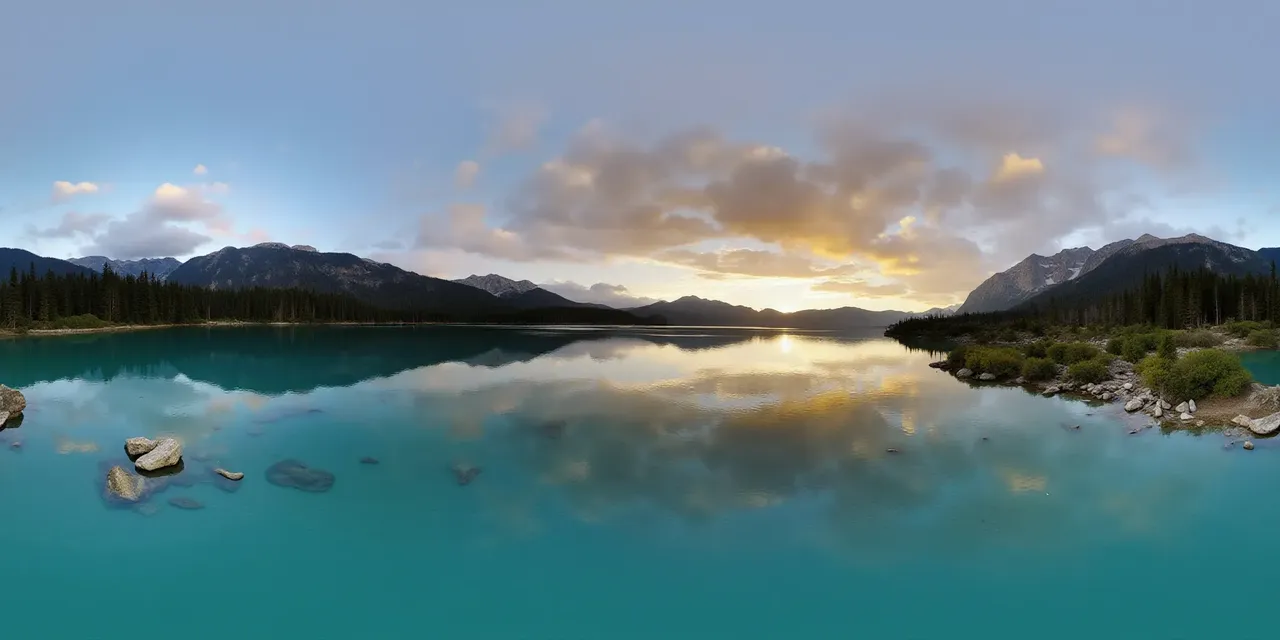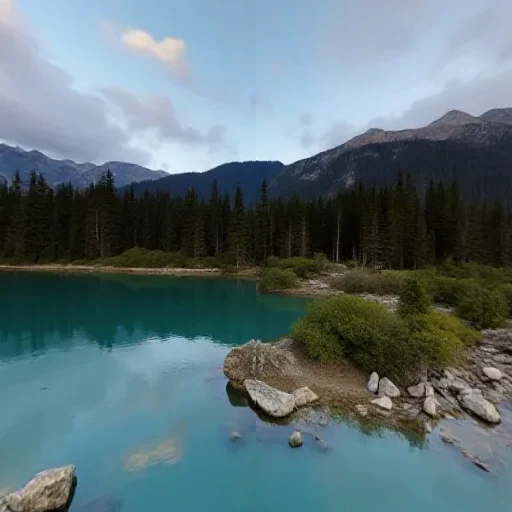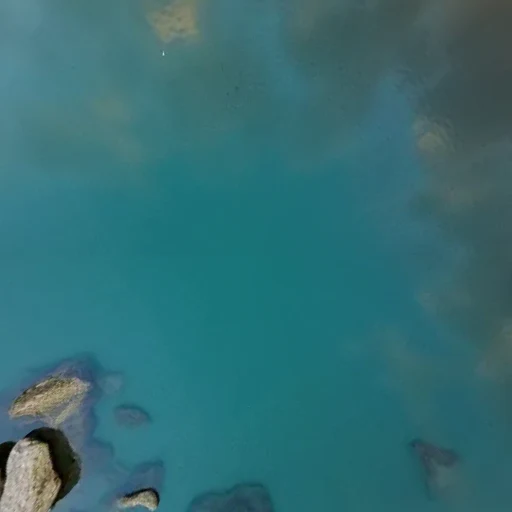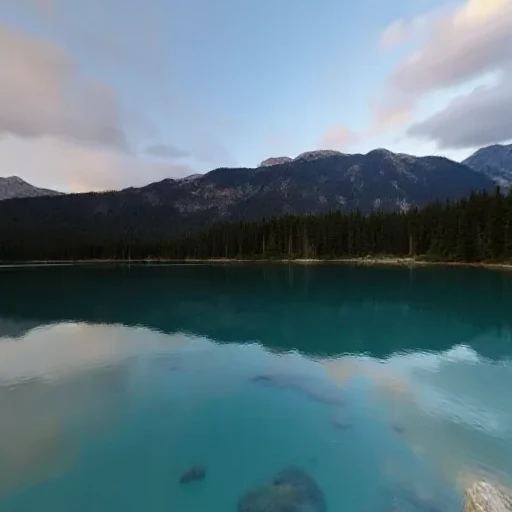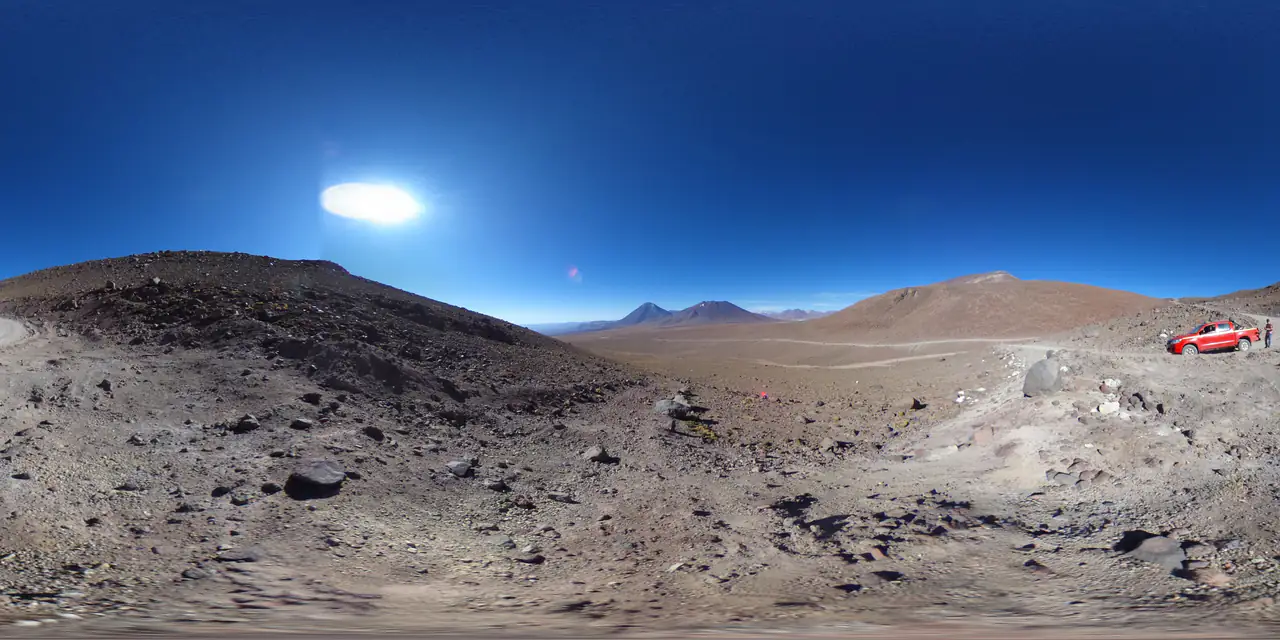
- The six faces are px (+X), nx (−X), py (+Y), ny (−Y), pz (+Z), nz (−Z). Wrong order is the most common bug.
- 1024 px per face is the usual real-time choice; 2048 px costs more texture memory.
- Convert from a checked 2:1 source. A seam or clipped sky does not disappear in the cube map.
An equirectangular panorama stores latitude and longitude on a rectangle. A cube map stores six 90° views on six squares. Both describe the same sphere; the cube version is what most real-time renderers sample natively.
The six faces and the order that matters
- px — right (+X)
- nx — left (−X)
- py — up (+Y)
- ny — down (−Y)
- pz — front (+Z)
- nz — back (−Z)
That order is the OpenGL / WebGL convention used by Three.js CubeTextureLoader and by PanoCraft's exporter. Unity's 6-sided skybox uses named slots, so assign by direction rather than by file order if your importer sorts alphabetically.
Step 1 — convert the panorama
- 01
Check the source
Open the Panorama Checker and confirm 2:1, a continuous seam and a healthy range. Fix the source before converting.
- 02
Choose a face size
512 px for previews, 1024 px for most real-time scenes, 2048 px for a hero skybox. The source resolution caps the useful output.
- 03
Export and inspect
Download the six PNGs or the ZIP. Open the front and back faces side by side and confirm the horizon lines up.
Step 2 — Unity
Create a Skybox/6 Sided material and assign the six textures to the matching direction slots. Keep the texture import settings consistent: sRGB on for color, mipmaps on, and compression appropriate to the platform. If the sky looks rotated, swap the front/back or left/right pair — the faces are correct but the slot mapping is not.
- Use the same face size for all six textures.
- Keep a high-resolution source separate from the game build; let the platform compress the imported faces.
- Check the seam in the actual scene camera, not only in the material preview.
Step 3 — Unreal Engine
Unreal's cubemap import path depends on the engine version and your pipeline. The safe rule is to keep the px/nx/py/ny/pz/nz order and verify the result in a test sky before building materials around it. If your version only accepts a single cube texture asset, use the engine's own cube import step; do not rename the faces and hope the order survives.
Step 4 — Three.js
const loader = new THREE.CubeTextureLoader();
const cube = await loader.loadAsync([
  "/px.png", "/nx.png", "/py.png",
  "/ny.png", "/pz.png", "/nz.png",
]);
cube.colorSpace = THREE.SRGBColorSpace;
scene.background = cube;Four mistakes that flip a skybox
- Wrong face order: the sky is mirrored or rotated. Recheck px/nx/py/ny/pz/nz.
- Wrong color space: the sky looks washed out or too dark. Color textures are sRGB; data textures are linear.
- Wrong face size: one face is softer than the others. Export all six at the same size.
- Converting a bad source: the seam or clipped sky is already in the panorama. Check first.
Before you ship
Look at the sky in the engine from at least four directions, including straight up and straight down. The poles are where equirectangular resampling is weakest, and they are also the easiest place to spot a mirrored face.
Questions this guide answers
What order are the six faces in?
px (+X right), nx (−X left), py (+Y up), ny (−Y down), pz (+Z front), nz (−Z back). This is the OpenGL / Three.js convention used by the tool.
What face size should I use?
1024 px for most real-time scenes, 2048 px for a hero skybox, 512 px for previews. A 2K panorama cannot produce a true 4K face; choose a size that matches the source.
Can I convert an 8K panorama?
Not in the browser tool yet. The current limit is a 16.7 MP working canvas, which covers common 4K panoramas. For 8K, convert on a workstation or wait for the worker-backed batch path.
Why does the sky look mirrored in Unity?
The six images are probably correct but assigned to the wrong direction slots. Match each file to its direction (px/nx/py/ny/pz/nz), not to alphabetical order.